INTERVAL / PRACTICAL GUIDES
How to keep meetings on time on your Mac
Set a finish time before the call, agree one decision to make, and reserve the last few minutes for next steps. A visible meeting countdown makes that plan easier to follow while you listen.
Give the meeting a finish line
“Review the prototype” can fill an hour. “Choose the navigation approach by 10:30” gives the group a specific outcome and boundary. Put both in the invitation and repeat them at the start. If you are a participant, ask what needs deciding before the meeting ends.
A worked 30-minute design review
This is an example agenda, using the same fictional Design review shown in the app images. Change the times to fit your meeting.
- 10:00–10:03: agree the decision and confirm the 10:30 finish.
- 10:03–10:18: review two options, keeping the discussion tied to the decision.
- 10:18–10:25: choose an option and record the reason.
- 10:25–10:30: name the next action, its owner and a due date.
Keep the countdown beside your work
Interval shows the meeting’s remaining time in a panel attached to your Mac’s screen edge. Fold it into the compact timer when you need room for a shared screen, then open notes to capture the decision.
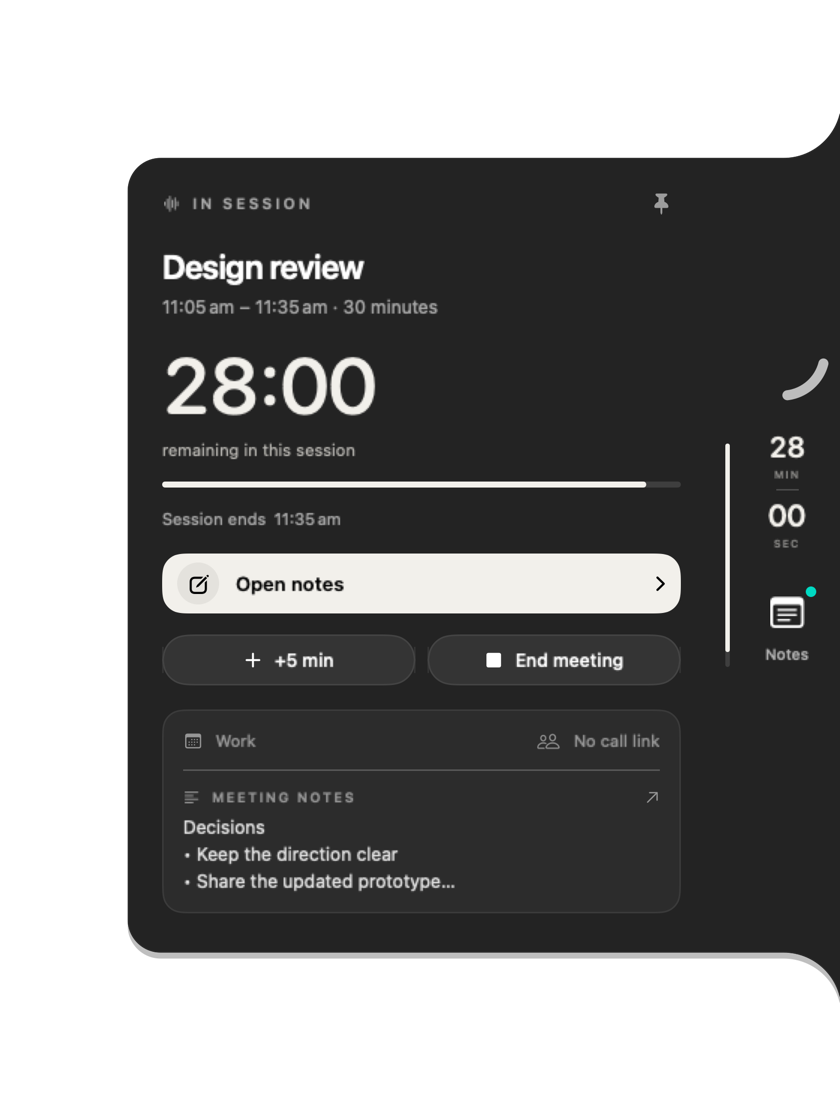
When the discussion needs longer, the app’s +5 min control extends your personal timer. Agree the new finish with the group separately: Interval does not change the calendar invitation or extend everybody else’s call.
An agenda you can copy
Decision we need:
Finish time:
Options to discuss:

Last five minutes:
Decision and reason:
Next action / owner / due date:
Topics to take elsewhere:
Keep a “topics to take elsewhere” line for useful tangents. At the finish, decide whether to arrange another discussion rather than carrying on automatically.
What the timer can and cannot do
A personal countdown helps you notice time; it cannot stop other participants talking or enforce an agenda. Interval is a Mac meeting companion, not a shared team agenda timer or a room display. If you need everyone to see the same agenda countdown, choose a tool designed for that job.
Next: capture decisions and next steps, or connect your calendar.