INTERVAL / PRACTICAL GUIDES
Capture decisions and next steps beside your meeting timer
Interval’s main job is to keep meetings, start/end countdowns and overlaps in view. When you need a written record, keep a short decision log beside the countdown: what was agreed, why, and who will do what next. Interval’s notes are written by you; it does not record, transcribe or automatically summarise a call.
Write the result while the meeting is fresh
- Open the meeting in the edge panel and choose Open notes.
- Write the decision in a sentence. Use Bullet for supporting points and Checklist for follow-up items.
- Use Insert to append a decision, action item or meeting outline if a starting structure helps.
- Include a named owner and a due date for each action; a checklist alone does not assign work to anyone.
- Return to the timer when you want to check the finish time.
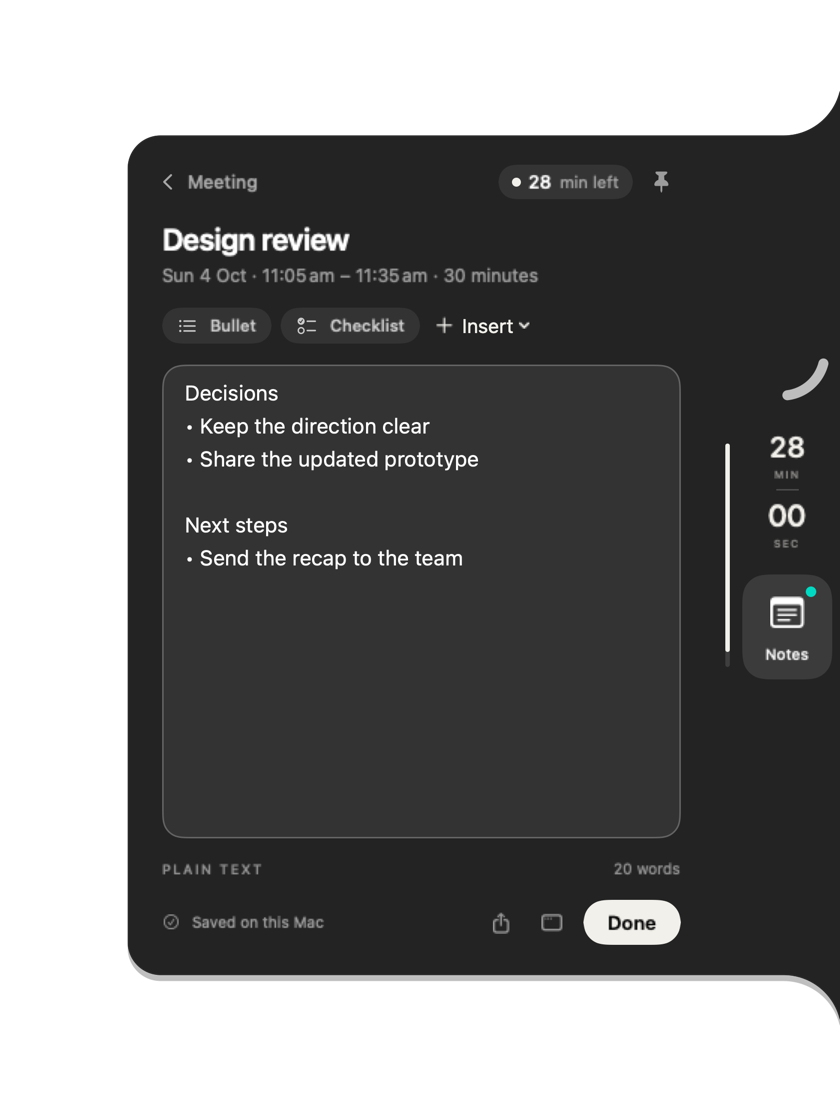
A meeting-notes template
Select and copy this text, or download the plain-text template. It works in Interval or your existing notes app.
Meeting:
Date:
Decision needed:

Decisions
• What we chose — and why:

Next steps
☐ Action — owner — due date:

Open questions
•

Follow-up meeting needed?
Find and export the note later
Completed meeting notes appear in Interval’s notebook. Use Search notes to locate the saved note and open it to review or edit its text. The saved-note view includes an Export action through the Mac share interface. Review the content and choose an appropriate destination before sharing it.
Export provides text you can use elsewhere; it does not automatically update your task manager or email the group. Copy agreed actions into the system where your team actually tracks them.
Choose where notes live
Notes are saved on your Mac. In Settings → Meeting workflow, iCloud notes is optional. When enabled, notes may sync through your Apple account on compatible devices. Do not assume sync has completed before relying on another device; check the actual saved note there.
The privacy policy explains note storage and sync. No real calendar or private notes were used for this guide’s example image.
Keep manual notes manageable
A concise decision log is usually more useful than a transcript you never revisit. Reserve the final few minutes to read actions back aloud and correct misunderstandings. Interval keeps the timer and editor together; you still choose what to record.
Next: leave time to close the meeting, or schedule follow-up work.