INTERVAL / PRACTICAL GUIDES
Use a meeting countdown alongside Apple Calendar
Interval reads the Mac calendars you select after you grant calendar permission. It uses their events to show your meeting day and a countdown; it does not edit invitations.
Connect the calendars you actually use
- Check that the event is visible in Apple Calendar on this Mac, with the expected start and end times.
- Open Interval’s Settings. Under Your day, choose Connect calendars if permission has not yet been granted.
- Grant the read access requested by macOS. A permission that only allows adding events cannot supply your existing meetings.
- In Selected calendars, choose Choose… and select the calendars you want in your day. You can search calendar or account names in that sheet.
- Set Preparation to the lead time you want. Notification permission is a separate choice; configure it in the app’s Notifications section if you want alerts.
From calendar event to personal timer
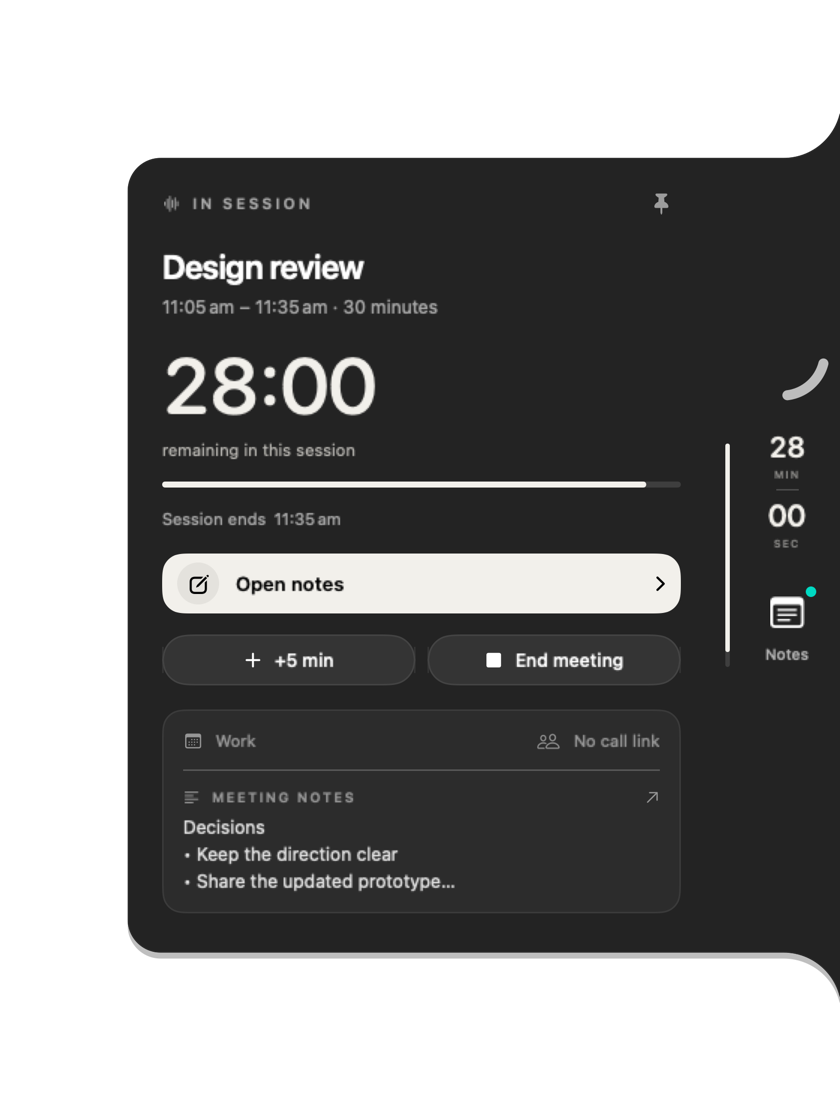
Check the meeting shown by Interval before starting. The panel keeps its title and remaining time together. Open notes from that meeting to record decisions; fold the panel when you want a smaller timer.
Starts, endings and overlaps
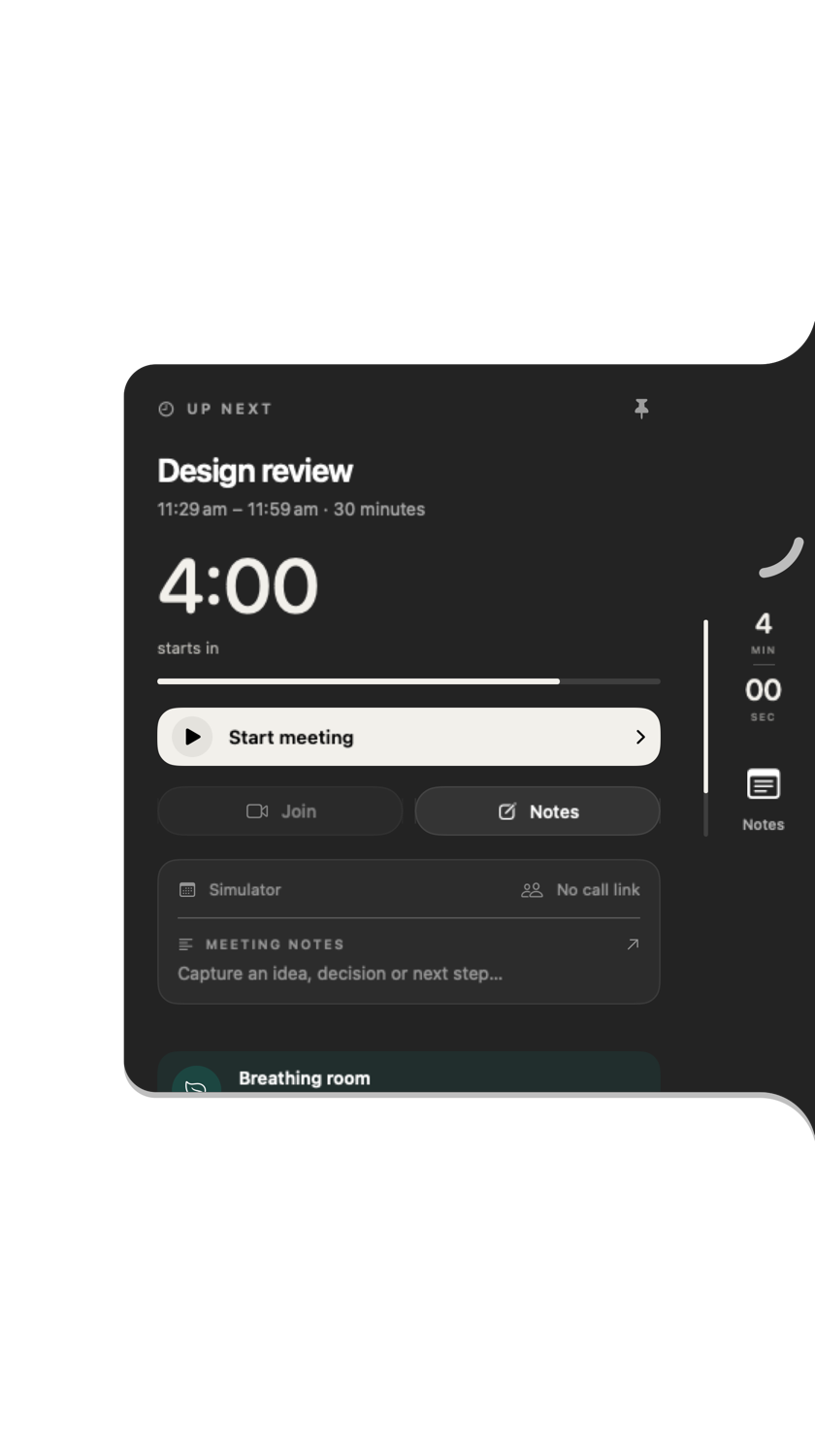
Before a meeting, Interval shows what is coming up. Inside the preparation window it displays a countdown to the start; the current meeting view shows its time remaining. Configure your preparation lead time separately from notification permission.
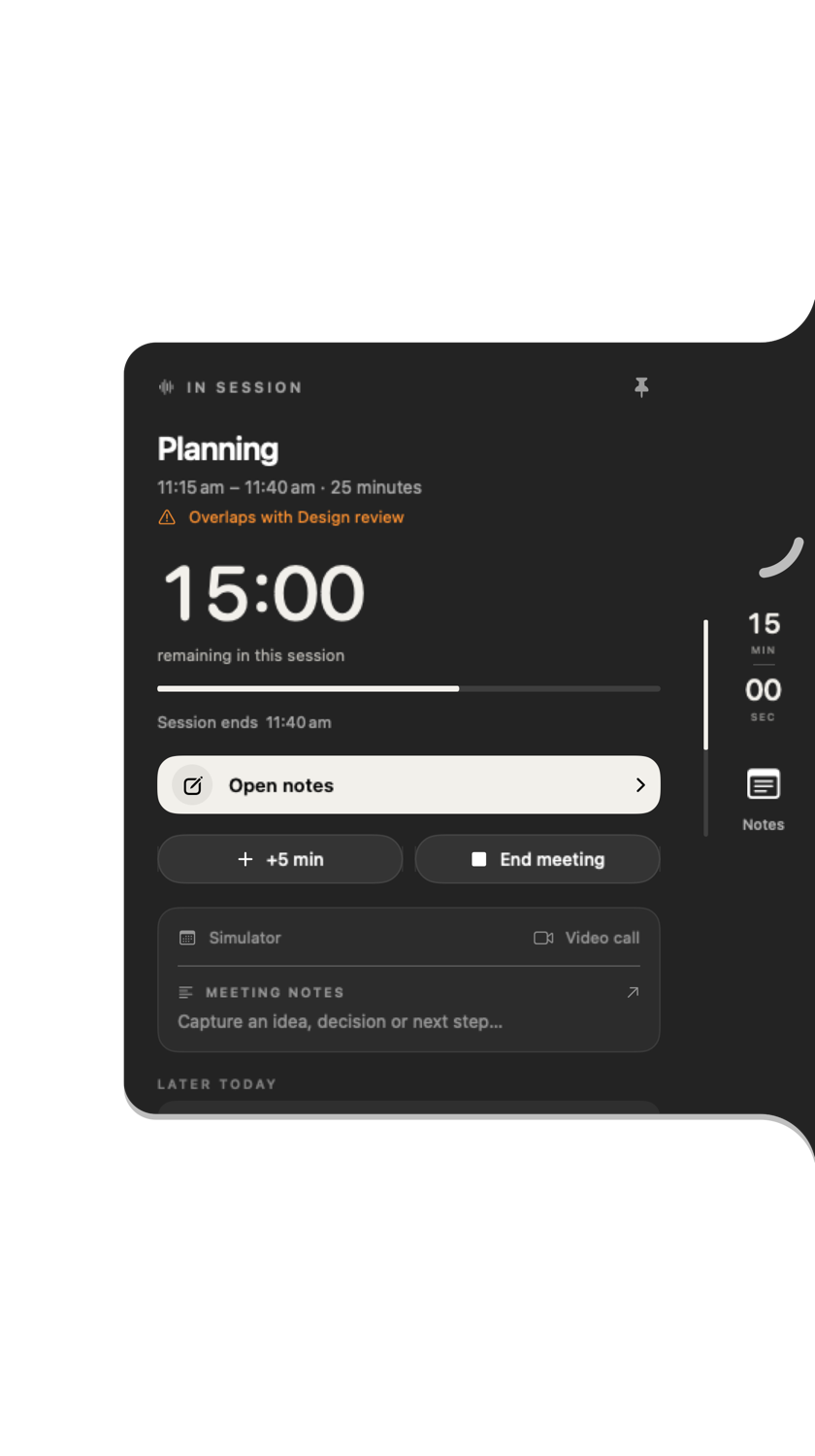
When events in the selected calendars overlap, the native panel shows an orange warning reading “Overlaps with…” beside the meeting. Later meetings are listed below. This is a visible schedule warning, not a promise of a separate system notification or automatic conflict resolution.
Meeting links and other calendar accounts
Interval recognises supported meeting links from event details, including Zoom, Google Meet, Microsoft Teams, Webex and FaceTime. A matching link must be present in the event; the screenshot’s fictional event deliberately has no call link. A join action opens the link and the relevant service handles the call.
Interval uses calendars made available by macOS. It does not offer its own Google or Outlook account sign-in. This guide has not tested a live Google or Outlook account setup, so it does not promise that every account, event format or meeting link will appear. Verify your own account in Apple Calendar first.
If calendar access is not connected
The current app distinguishes Permission required, Access denied, Restricted, Read access required and Unavailable. For denied or insufficient read access, its action is Open Settings; check Interval’s calendar permission in macOS System Settings. Managed Macs may require help from their administrator.
If a connected event is missing, check the selected calendars and the event’s times. These are checks to make, rather than a claim that every missing-event cause has been reproduced. Contact support if it remains missing.
Without calendar permission
You can decline calendar access and revisit that choice later. Interval cannot read your agenda or show automatic event-based countdowns without it. Retained notes remain separate from calendar permission. This guide does not promise a standalone arbitrary-duration timer as a substitute.
Next: plan a meeting that ends on time, or make room between calls.