INTERVAL / PRACTICAL GUIDES
How to see a countdown to your next meeting on iPhone (and time left once it starts)
Short answer
The iPhone Calendar widget can show your next event on the Lock Screen. For a live countdown to the start, use an app that offers a Live Activity. Interval for iPhone also counts down to the end once the meeting is underway, so you can check time left even after you leave the app.
What iPhone does on its own
If you only need to know what’s next, add Apple’s Calendar widget to your Lock Screen. Touch and hold the Lock Screen, tap Customize, then tap the widget area and choose Calendar. The larger Calendar widget can show the event name and time. MacRumors shows how to add it.
The Calendar widget shows when the event is scheduled. It doesn’t give you a ticking timer for how many minutes are left before the start. You can also use an event alert if you want a prompt at a set time. Apple documents the widget and Calendar notifications separately from Live Activities. Check Settings → Apps → Calendar for the options on your iPhone.
Option 1 — countdown to the start (Live Activity / alarm apps)
If the problem is missing the start, try an app that counts down to the scheduled time or sounds an alarm before it. The right fit depends on whether you want a quiet glance at your phone or a prompt you can hear when it’s in your pocket.
- Showup lists a Live Activity with a countdown and a Join button on the Lock Screen and Dynamic Island. It can follow up with a full-screen alarm for the meetings you choose. Showup.
- Call to Meet lets you set alarms for calendar meetings. Consider it if you need a prompt to join a call. Call to Meet on the App Store.
- Alarmate can show a live countdown to an alarm, including a calendar alarm, on the Lock Screen and on supported Dynamic Island models. The alarm fires when the timer reaches zero. Alarmate’s Lock Screen guide.
- Cloud Calendars offers a Live Activity for a future timed event. Its guide says the countdown is “not a timer for all-day entries or a measure of how much time remains in a meeting already underway.” Cloud Calendars’ countdown guide.
Option 2 — countdown + time left with Interval
Set up
- Install Interval on an iPhone running iOS 26 or later. Allow calendar access when asked. In Interval’s Settings, use Selected calendars to choose which calendars to show.
- In iPhone Settings, go to Apps → Interval → Live Activities and allow them. In Interval’s Settings, open Notifications & Live Activities and turn on Scheduled Live Activities if you want the countdown to appear for upcoming meetings.
- If you also want meeting alerts, turn on Meeting notifications and grant notification permission. Then open Today and check that your next meeting appears with the correct start time.
Interval is free to download. Full access needs Interval Pro. Apple shows current local prices and trial eligibility before purchase.
Before the meeting
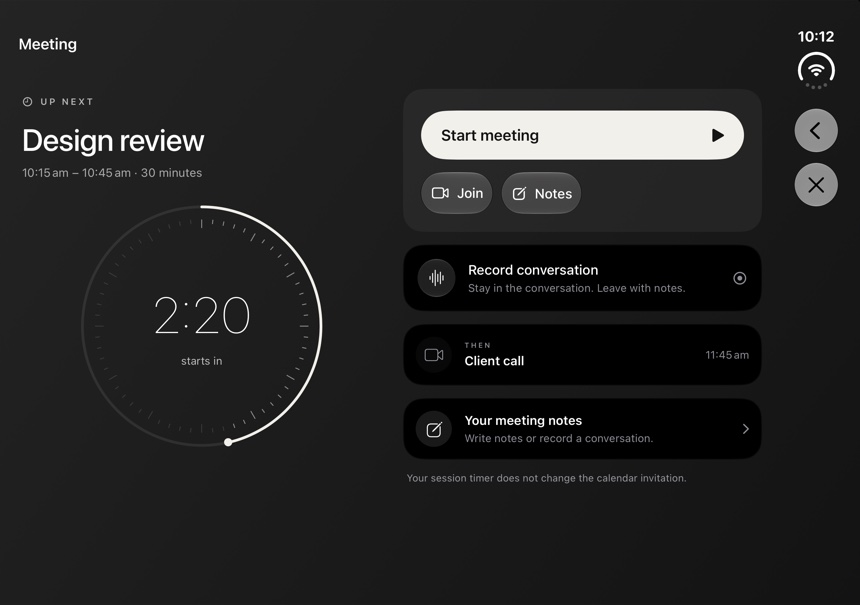
Say your design review starts at 10:15. Open the upcoming meeting in Interval to check the preparation countdown and decide when to finish what you’re doing. Use the call link when the invitation includes one. With Live Activities enabled, the countdown can appear on the Lock Screen and in the Dynamic Island on supported iPhones.
During the meeting
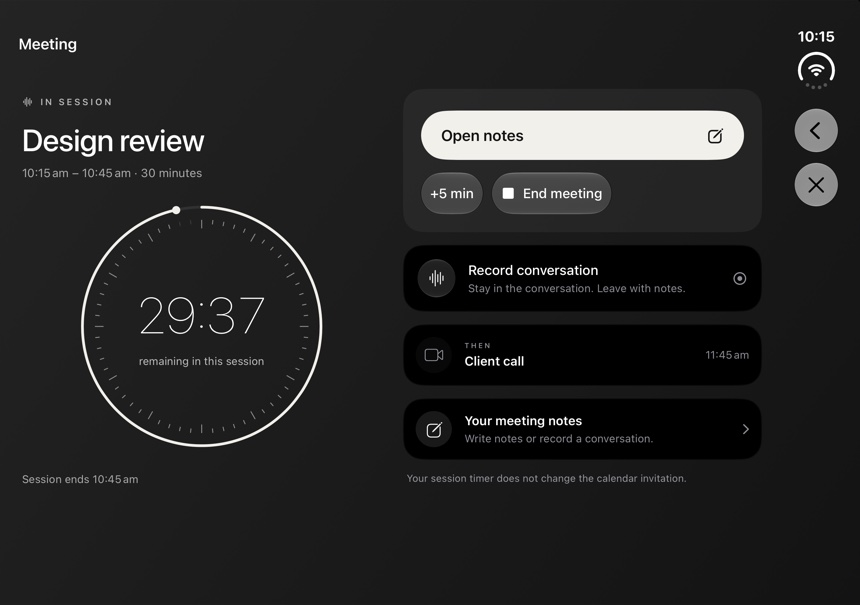
Once the meeting starts, the timer counts down to its scheduled end. If the review is booked until 10:45, at 10:40 you have five minutes to agree on next steps. The Live Activity keeps the countdown visible outside the app. If the conversation needs longer, tap +5 min in the meeting view. That extends your personal session timer without changing the calendar invitation or anyone else’s schedule.
Back-to-back days
Check Today for back-to-back meetings and overlaps before extending a timer. If the next call starts at 10:45, the five minutes left are also your time to wrap up and switch calls. For related Mac workflows, see how to spot double-booked meetings, how to keep meetings on time and meeting reminders for ADHD and time blindness.
Also, Interval Pro can record a scheduled in-person meeting on iPhone through the microphone and transcribe it on-device, up to an hour. See the guide for recording limits.
Which should you use?
| What happens | What to use |
|---|---|
| You forget when the next meeting is | Start with the Calendar widget. |
| You miss the start while doing something else | Try a start countdown or a meeting alarm. |
| You lose track of time or meetings run over | Use Interval to see time left in the current meeting. |
If you work from your Mac during calls, see how to see time left in a meeting on Mac for built-in Zoom, Teams and Meet options and a calendar-based timer.
Troubleshooting
- No Live Activity appears. Check that iPhone Settings allows Live Activities for Interval and that Scheduled Live Activities is on in Interval. Open Today and check that the meeting is on a selected calendar.
- The countdown points to the old time. Open Calendar and confirm the new time has synced. Reopen Interval and compare the event name and time. If you swiped the app away, reopen it to pick up calendar changes.
- You see the countdown but missed the alert. Check notification permissions, Focus and Silent mode. A visible countdown and an audible alert are separate. Test the alert with the Focus and sound settings you use during your workday.
FAQ
Can my iPhone show a countdown to my next meeting on the Lock Screen?
Yes, with an app that offers a countdown through Live Activities. The built-in Calendar widget shows your next event and its scheduled time. For a ticking countdown on the Lock Screen, apps such as Showup, Alarmate and Interval offer Live Activities.
How do I see how much time is left in a meeting on iPhone?
Use a timer that counts down to the meeting’s end. Cloud Calendars describes its countdown as a timer for a future event. Interval reads your calendar and counts down to the end of the current meeting. Its Live Activity can stay visible after you leave the app, and you can add five minutes to your own timer.
Does a meeting countdown work if the meeting moves?
It can update once the app picks up the calendar change. After a reschedule, reopen the app and check that the event title and start time match your calendar.
Do I need a Dynamic Island to use Interval’s countdown?
No. You can see the countdown in Interval and use Live Activities on the Lock Screen. The Dynamic Island view requires a supported iPhone.
Sources
Checked . See the Interval App Store listing and UK iTunes lookup for iPhone version 1.2, Apple’s widget guide, Apple’s Live Activities settings and MacRumors’ Calendar widget walkthrough. The competitor rows link to each developer’s own listing or guide.