INTERVAL / PRACTICAL GUIDES
Use Google or Outlook calendars with a Mac meeting timer
Interval reads calendars made available by macOS. To use Google or Outlook events, first check that the relevant account and events appear in Apple Calendar on this Mac, then grant Interval read access and select that calendar.
Start with Apple Calendar
- Open Calendar and choose Calendar → Add Account.
- Choose the account provider offered by macOS and follow its sign-in instructions. Enable Calendar for the account where available.
- Check that a real upcoming event appears with the correct start, end and time zone.
Apple documents adding Google and other supported calendar accounts in its Calendar account guide. Google also documents using Google Calendar with Apple Calendar. Outlook is a calendar app as well as an account brand: the provider your organisation uses determines which account type works. For Microsoft work accounts, follow your organisation’s current instructions. If Apple Calendar cannot connect, resolve that with the provider or administrator first.
Select the account in Interval
- Open Interval Settings and choose Connect calendars under Your day.
- Grant read access to your existing events. Add-only permission is insufficient.
- Under Selected calendars, choose Choose…, find the calendar or account and select the calendars you need.
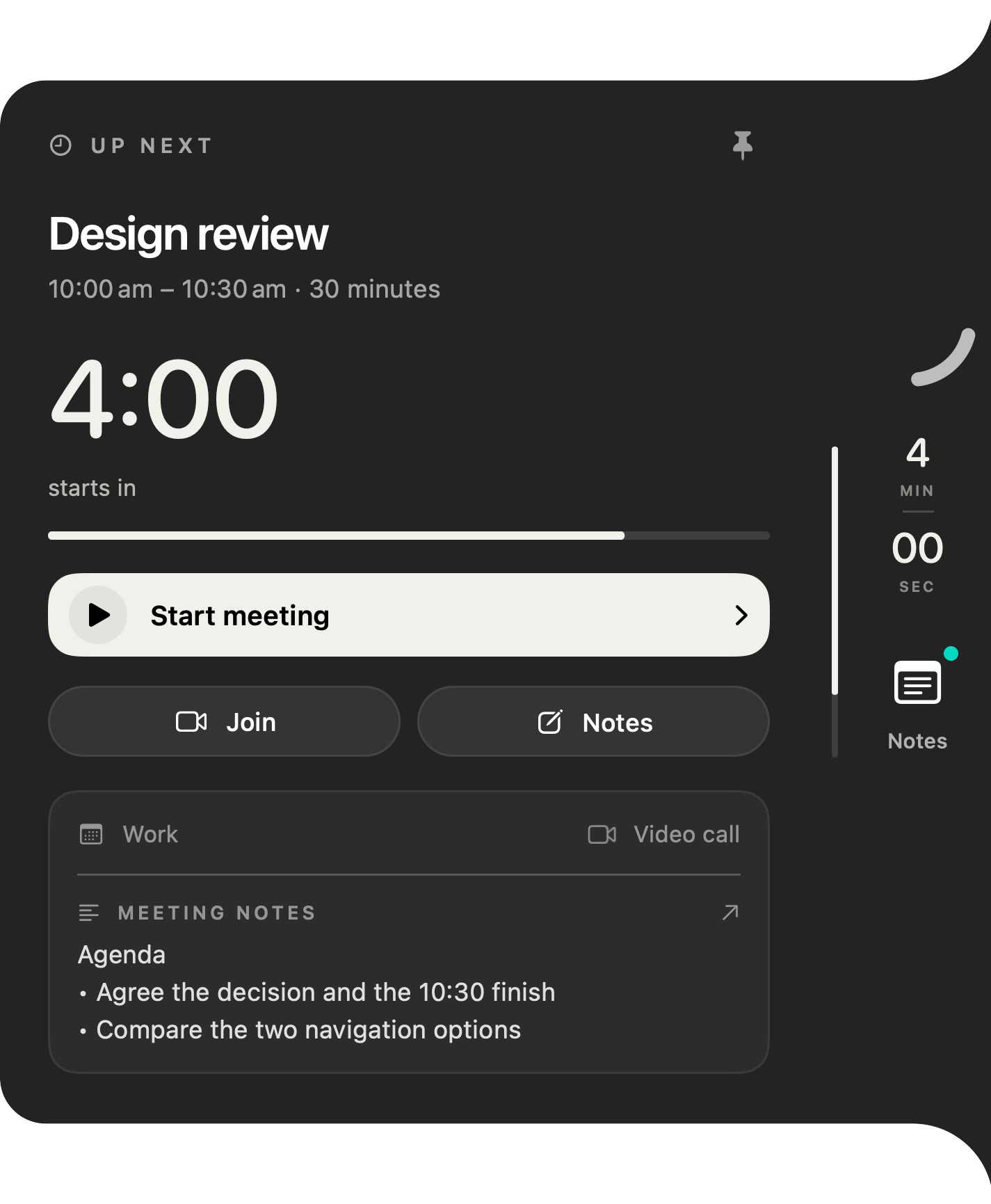
- Compare the next meeting against Apple Calendar. Check both the time and selected calendar.
What carries across?
Events that macOS makes available to Interval can supply its agenda and start/end countdowns. A supported call URL in the event can supply a join action. Interval reads events; it does not create invitations, reschedule meetings or sign in to Google or Microsoft itself.
If a meeting is missing
Check whether it is missing in Apple Calendar too, whether its calendar is selected in Interval, and whether Interval has calendar read permission. Managed accounts may restrict access. We have not verified a live Google or Microsoft account end to end; availability depends on your account, provider and macOS configuration.
Read the calendar permission guide or contact support with your macOS version and account type. Do not send passwords or private calendar contents.